Sell at the point of sale
Touch and keyboard modes, categories, scanner and scale, split payments, and what happens when the internet goes down.
Updated on October 24, 2026
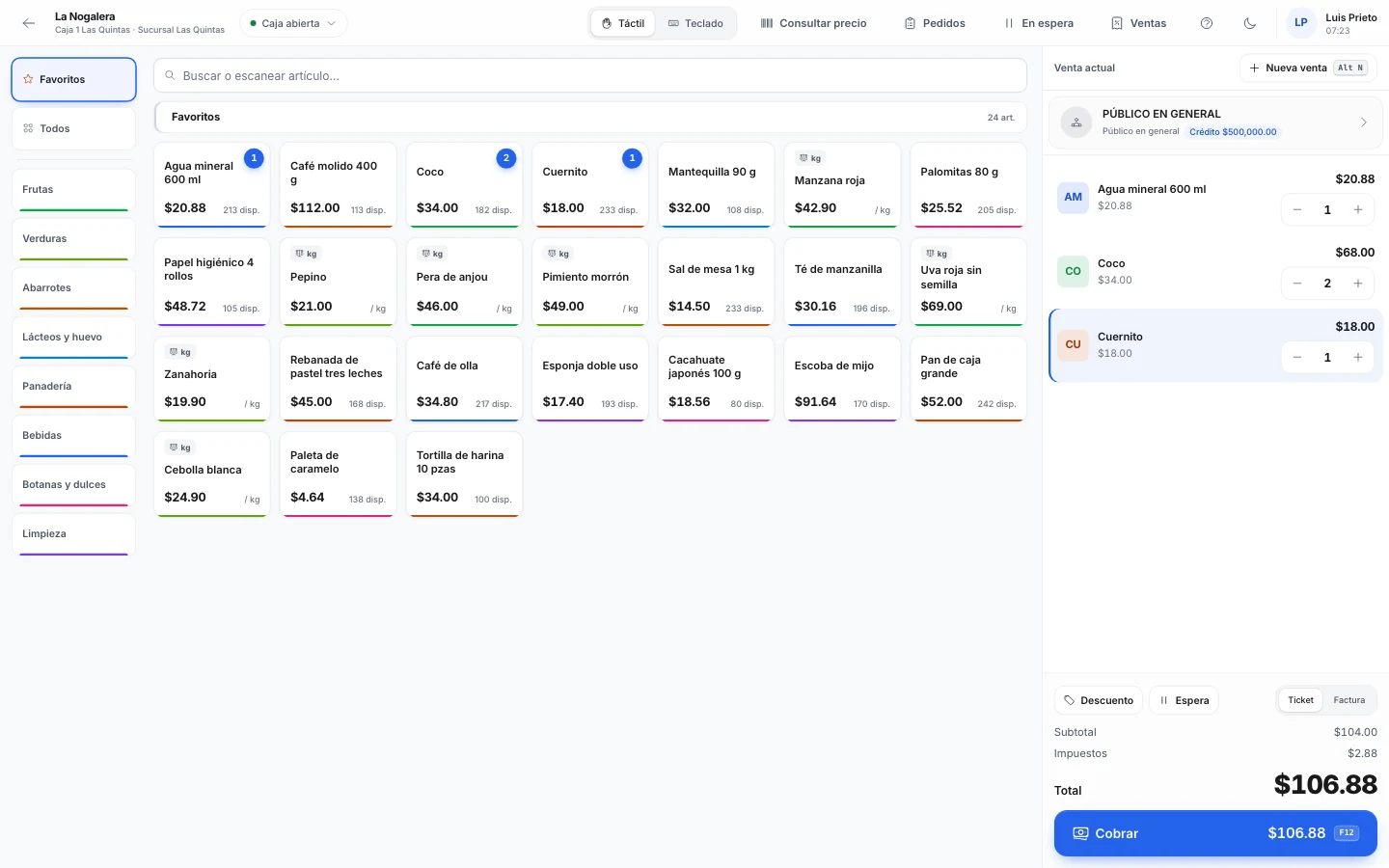
Two ways to work
The point of sale has two modes, and each cashier can use the one they prefer. Nori remembers the last mode each cashier picked.
- Touch: categories on the left and buttons with each item's photo or name and price. Best for tablets and stores with a short item list, like a coffee shop or florist.
- Keyboard: a large entry field that's always ready for the scanner, with sale lines in a table. Best for counters with a large catalog.
Switch modes with Alt+T or with the selector in the top bar. You need an open shift before you can sell (see Open and close the register).
Add items
- Scanner: scan the barcode and the line is added. If the item is already in the sale, the quantity on that line goes up.
- Several units: type
3*codeand press Enter to add three at once. - By name: type part of the name, then use the arrow keys and Enter to pick it.
- Scale labels: labels that start with
020carry the item and the weight. - Items sold by weight: Nori reads a scale connected by serial cable (in Chrome or Edge). With no scale, type the weight.
In touch mode, tap the item's button. Favorites shows items marked as favorites plus the top sellers from the last 30 days in that warehouse.
To change the quantity, price or discount, or add a note to a line, select it and press F4. Changing the list price, or giving a discount above your role's limit, needs a supervisor's authorization.
POS categories
By default, the POS shows your item groups. To arrange them your way, an administrator clicks Edit layout in the POS and then Customize categories. From there:
- Drag to reorder categories and items.
- Drop a category onto the center of another to nest it inside.
- Tap a category to change its name, color or image.
- Drop an item onto a category to move it.
Out-of-stock items are hidden, shown dimmed at the end, or shown normally, depending on Administration › Settings › Point of sale. A hidden item still comes up if you scan it or type its exact code.
Customer, hold and discounts
- F2 selects the customer. With no customer, the sale goes to the general public. From there you can also add a new customer, or a one-time customer who only needs an invoice.
- F8 puts the sale on hold under a name so you can find it. F9 brings it back.
- Shift+F6 applies a discount to the whole sale.
- Del removes the selected line and Ctrl+Z brings it back.
Taking payment
Press F12 (or Ctrl+S, or Enter with the search box empty).
- Choose the payment method (or Alt+1 to Alt+9).
- Type the amount or use the quick cash buttons: exact amount, next round amount, and bill values.
- Add another method if the customer splits the payment. Cards ask for a reference, such as the last four digits.
- For a customer with a credit line, you can put the whole sale or the balance On credit. If their payment terms require payment, you have to collect all of it.
- Click Complete sale.
The change due shows in large type. From that screen you can print the ticket, email it or start the next sale. If the terminal issues invoices and the series is stamped (certified with SAT), you also see the status of the CFDI (Mexico's e-invoice).
Reprints and returns
F10 shows the shift's sales so you can reprint or return them. Alt+D starts a return on a ticket: choose the lines being returned and the reason, and the refund comes out of the register. For an invoice, the refund can stay as store credit on the customer's account. Reprinting a ticket can require authorization if your company turned that on.
If the internet goes down
The sale in progress is saved on the device. If you reload the page or the network drops, the sale is still there when you come back, and the top bar shows Offline. While offline, the total is an estimate. Taking payment does need a connection: if it fails at checkout, click Retry once you're back online. Each sale carries its own key, so a retry never charges twice.
Price checker
To check price and stock without starting a sale, use the Price checker in the Nori mobile app. Scan the barcode with the phone's camera to see the price, stock by warehouse, batches and bin locations. The Set up the mobile app guide explains how to install it.
Press F1 inside the POS to see all the shortcuts.
Can't find something?
Tell us what you need to do and we'll get back to you. If you're already a customer, include your company name.