Design routes and plan the day
Set up each route with its CEDIS and truck, place customers on the map with their visit frequency, and generate the day plan and truck load every morning.
Updated on October 24, 2026
1. Set up the route
In Route sales › Setup › Routes, create one route for each vehicle that goes out to sell. The fields that matter most:
- Sales model: presale (the rep takes orders that are delivered later), van sales (the rep sells from what's on the truck) or delivery (the truck delivers orders already taken).
- Supplying distribution center: the distribution center (CEDIS) warehouse that supplies the route.
- Truck: the warehouse that represents the truck, plus a separate one for on-board returns. If they don't exist yet, Nori can create them when you save.
- Vehicle, driver and crew (who sells, who drives, who helps).
- Days it runs, departure time, minutes per visit and the Daily sales target.
- To limit what can be sold on the route, add its items. Leave it empty to allow any item.
The same section holds the Reasons (visit, no-sale, no-visit and return reasons) and the Coolers & displays you lend to customers.
2. Place customers in the designer
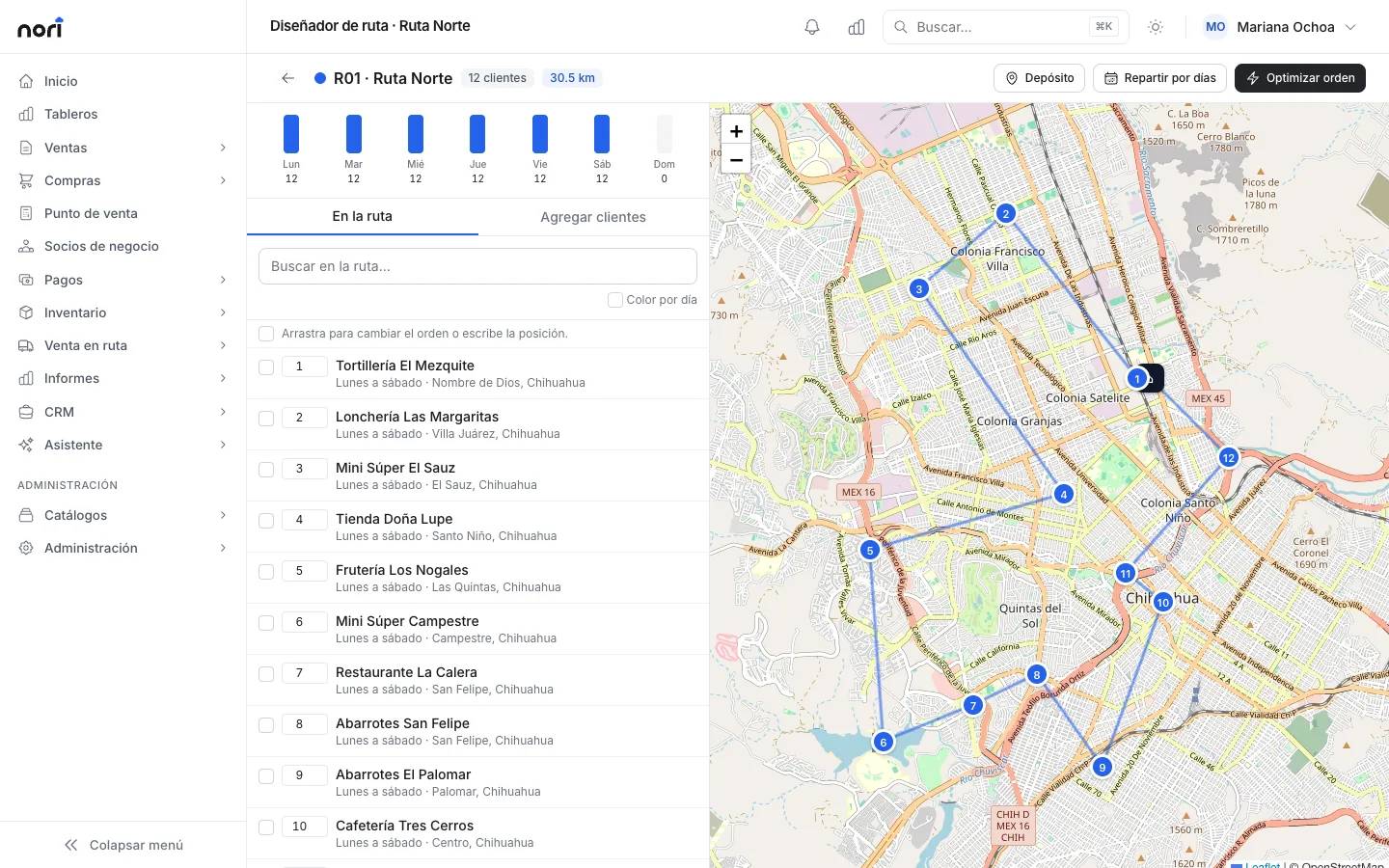
From the route, click Open designer. You'll see the map and the customers in visit order.
- Set the Depot on the map: where the truck leaves from and comes back to.
- Click Add customers and search by name, group, sales rep, neighborhood, city or ZIP code, or draw around them with Lasso on the map. Nori inserts each customer where it adds the least distance to the route.
- Select customers and click Days and frequency to set when they're visited: certain weekdays, every two or more weeks, certain weeks of the month, specific dates, or only on demand. This is also where you set the time window when they accept deliveries.
- If the route runs several days a week, Split by days divides customers into compact zones on the map, with about the same number of visits each day.
- Optimize order resequences the stops to cut mileage and keeps customers who close early at the front. When it's done, you see the kilometers before and after.
Distances are straight-line, so check the order on one-way streets and drag stops to adjust it.
3. Generate the day plan
In Route sales › Day planning, pick the date and click Generate all routes (or Generate for a single route). The plan includes the customers whose frequency falls on that day, in route order. For van sales and delivery routes, it also adds customers with open orders to deliver.
Open the plan to assign that day's sales rep, vehicle and driver, add or remove stops, and optimize again. If you regenerate, Nori adds what's missing and leaves stops already visited as they are.
4. Load the truck
In the plan's Load section, Nori suggests what to load:
- The open quantities on orders being delivered that day.
- For van sales, a forecast per customer: the average of their recent purchases plus the Safety margin.
- Minus what's already on the truck.
The Load sheet lists goods in reverse route order, so the last customer's goods go in the back and the first customer's go by the door. Print it with the Distribution center pick list.
When everything is ready, click Create transfer to the truck. Nori posts an inventory transfer from the CEDIS to the truck warehouse, linked to the plan. If you want the warehouse to review it first, check As a draft (the warehouse posts it).
Next steps (working the route and settling it) are in Work the route and settle.
Can't find something?
Tell us what you need to do and we'll get back to you. If you're already a customer, include your company name.